
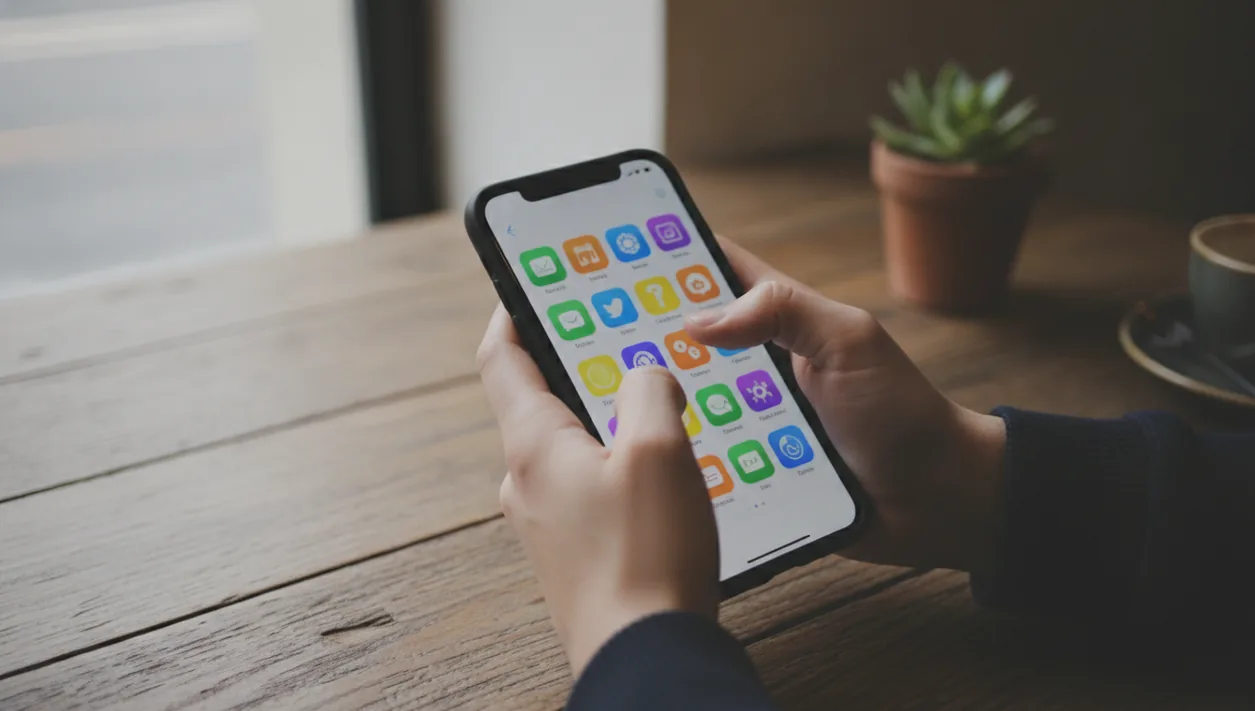
Clues in a screenshot that name an app
Apps give themselves away more often than you would expect. You just need to look at the right parts first.
- The icon shape, color, symbol and lettering.
- The developer or brand name.
- Visible text, including menu labels, error messages, usernames and URLs.
- Screen structure, such as bottom navigation, sidebars, tabs, buttons and card layouts.
- Distinctive fonts, colors, notification badges and status-bar design.
- Platform clues that point to iOS, Android, Windows or macOS.
- Context around the image, such as an app-store page, a notification sender or a website address.
The device counts too. Screen aspect ratio and operating-system version narrow the field, and our page on identifying the phone in a photo helps when the handset is the mystery. If the icon is a bare symbol with no name, working out which logo you are looking at is often the same job, and for marks that are not logos at all, identifying an unknown symbol helps too.
Which app is this? A step-by-step method
- Crop the image so the icon or interface fills the frame.
- Raise brightness and sharpness on a copy, not the original file.
- Read every visible word, logo, URL, username and developer name.
- Search the cropped image with Google Lens.
- On a supported Apple device, open the image in Photos and try Visual Look Up.
- Search any distinctive text in an ordinary search engine.
- Compare what you find with the official App Store or Google Play listing.
- Check the developer, icon, screenshots, package or bundle identifier, version and update date.
- Rule out that it is a website, a browser page, an operating-system feature or a shortcut.
- If the evidence conflicts, call it unknown rather than guess.
Step 9 saves time. A browser shortcut wears an icon just like an app does, and some things that look like apps are features of the operating system.
Using Google Lens and Apple Visual Look Up on an app image
Google Lens is published by Google LLC. Its Google Play listing says it searches or interprets content from a camera or an existing photo. Apple's Visual Look Up sits in the Photos app, in Safari, and in Quick Look, and Apple's support page lists landmarks, paintings, plants, pets, books and food as things it recognizes.
Notice that both lists are about things in the real world. For a screenshot, the words printed in it usually do more work than the picture does, so search those words too. Screenshots of an app work in our upload box as well, and the overview of what the tool does spells out its limits. The AI reads the screenshot and returns a likely answer with how certain it is, which is a fair starting point for an icon or a layout. Treat it as a suggestion and verify it in the store.
What is this app when you want one that identifies things?
Plenty of people typing this want the reverse. They have an object, a plant or a bug and need an app that names it. Three tools come up most.
- Google Lens. According to its Google Play listing, it can identify plants, animals, landmarks, restaurants and storefronts.
- Apple Visual Look Up. It works inside supported Apple software and devices, on the categories listed above.
- Seek by iNaturalist. It identifies wildlife, plants and fungi with real-time help and regional suggestions, using image recognition based on observations from iNaturalist.org and partner sites.
Seek and iNaturalist are easy to mix up. According to iNaturalist's help page, iNaturalist supports public observations and community identification, while Seek gives real-time, AI-assisted identifications and needs no account. Seek keeps your records on the device by default. Its privacy policy says it sends rounded coordinates, two decimal places, for species suggestions, and that images are sent only for identification and deleted from servers shortly after processing. An iNaturalist account requires you to be at least 13, or to have parental permission where it applies.
For a specific subject, a dedicated page often beats a general app. For plants, see naming a flower from a photo, and for the app type people lose track of most, finding a game from a screenshot is the place. If you want a price, name the item first. For price questions, head to what an item is worth.
Spotting a real app versus a lookalike or unwanted one
Counterfeit apps can copy a legitimate icon and name. An image-recognition result is never a reason to install something. Open the official store or the developer's verified website and compare these details.
| What to compare | What it tells you |
|---|---|
| Developer name and verified publisher | Whether the company behind the listing is the one you expect |
| Spelling and icon details | Small differences often expose an imitation |
| Package or bundle identifier | Whether two similarly named apps share a publisher |
| Permissions and reviews | Whether the app asks for more than its job needs |
| Version, date, language and region | Whether your screenshot matches the current release |
App stores list the publisher, screenshots, version, update date, ratings, permissions and price. The publisher's own support page is the final word on what an app is and does. If you suspect malware, phishing or an unauthorized program on a device, hand it to a security or IT professional rather than poking at it yourself.
Slip-ups that steer you to the wrong app
- Naming an app from its color alone.
- Treating an AI result as proof.
- Confusing an app icon with a website favicon or a browser shortcut.
- Ignoring the developer name and package identifier.
- Trusting an old screenshot without checking its date.
- Searching an unverified third-party download site.
- Assuming two similarly named apps come from the same company.
Asking what is this app and accepting a confident wrong answer is the usual failure. A name that matches the icon but not the developer is not a match. When the evidence does not agree, the honest answer is that you do not know yet.
What to remove from a screenshot before you upload it
Crop first, upload second. Keep passwords, authentication codes, payment-card numbers, private messages, medical information, children's faces and precise location out of any image you send to a tool. Strip or crop EXIF metadata before posting a photo publicly. Do not copy confidential screens or share another person's private image without permission, and remember that copyrighted artwork, trademarks and interface elements can carry their own legal limits.
For anything else you cannot name, the homepage upload box takes any photo, not only app screens. For a phrase to search, try finding what an unnamed thing is called.
Questions about what is this app
How can I tell a real app from a fake or unwanted one?
Counterfeit apps can copy a legitimate icon and name, so an image-recognition result is never a reason to install something. Open the official store or the developer's verified website and compare the developer name, verified publisher, spelling and icon details, package or bundle identifier, permissions, reviews, and version. If you suspect malware or phishing, hand it to a security or IT professional.
How do I find which app is in a screenshot?
Look at the icon, any visible text and the screen layout, then confirm the match in the Apple App Store or Google Play listing. Crop the image, read every word, URL and developer name, and search it with Google Lens. Compare the developer, icon, version and update date with the official listing. If the evidence conflicts, call it unknown rather than guess.
What is a lookalike app?
A lookalike app is an imitation that copies a legitimate icon and name. Do not install anything just because an image-recognition tool suggested it. Open the official store or the developer's verified website and compare the developer name and verified publisher, spelling and icon details, package or bundle identifier, permissions and reviews, and the version and date. Small differences often expose an imitation.
How to identify unwanted apps?
Compare the app's name, icon and developer with the official App Store or Google Play listing, and check permissions and reviews. Make sure it is not a website, a browser shortcut or an operating-system feature. If you suspect malware, phishing or unauthorized software, ask a security or IT professional for help.
What is an app exactly?
An app is a program you install on a phone, tablet or computer to do a specific job. Some things that look like apps are really websites, browser shortcuts or built-in operating-system features. That difference matters when you identify one, because a shortcut has an icon but no separate app listing in a store.
What should I check on an app's store listing?
Compare the developer name, verified publisher, spelling and icon details with the official App Store or Google Play listing. Then look at the package or bundle identifier, the permissions, the reviews, and the version and update date. Small differences often expose an imitation. If the evidence conflicts, call the app unknown rather than guess, and ask a security or IT professional if you suspect malware.
Is it safe to install an app a photo tool suggests?
Never install an app only because an image-recognition result recommended it. Counterfeit apps can copy icons and names, so confirm the match first. Compare the developer name, store listing, package identifier, spelling, icon details, permissions and verified publisher against the official store page or the developer's verified website before you download anything.